We no longer support this browser. For an optimal experience, we recommend updating your browser.

Connect Devices
How to connect devices
For modems and SmartNIDs
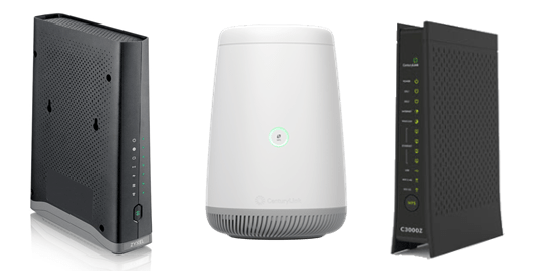
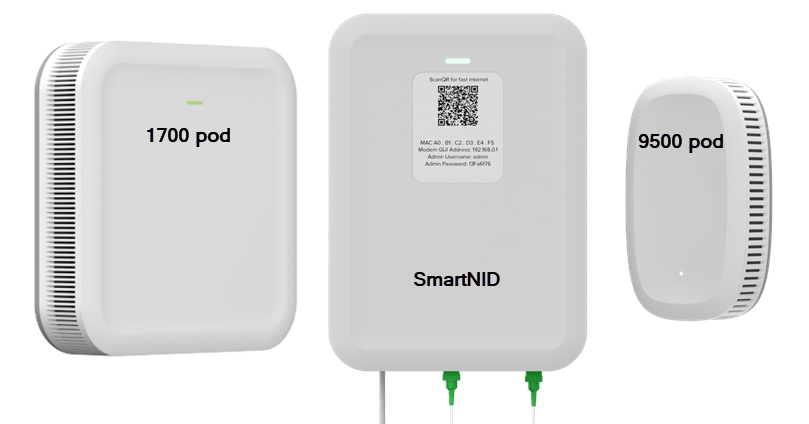
1. Choose your speed and purchase service.
Click the button above to Check Availability and follow the prompts to complete your plan purchase.
2. Set up your CenturyLink account profile/download the app.
Look for the confirmation email after you purchased service and follow the links to set up your account profile.
It's easier in the app!
Download the My CenturyLink app


3. Find your modem and network.
When you move in, find your modem. It may be in a media panel or a closet. Your network SSID is printed on the sticker on the modem.
4. Create a secure network password.
- Sign in to your CenturyLink account.
- Select Services.
- Select your network.
- Edit network.
- Enter a new password & save.
5. Connect your devices using your new password.
Need an appointment?
When you placed your order and selected your activation date, we started a remote test of your equipment to make sure everything was plugged in and working correctly.
You received the notice because we found an issue that will require a technician to resolve.
Please respond to the email and select a convenient appointment time.
Moving or canceling service
Please contact us to cancel service. Prepaid payments for unused service will not be refunded or credited to your account.
If you are moving to another unit in the same community, you'll need to cancel your service for the home you are leaving. When you move into your new home, follow the same steps to sign up that you did originally.

Get help
Call CenturyLink Fiber Internet
Monday-Friday, 8:00 am-7:00 pm Central
In Las Vegas, NV or Florida:
Support tools


Support topics


About Lumen | About CenturyLink | Careers | Investor Relations | Newsroom | Legal | Privacy Notice | Tariffs | Customers with Disabilities | Site Map | Cookie Settings | CenturyLink in Your Area | CenturyLink.net | White/Yellow Pages | GetCenturylink | CenturyLink Internet Partner
Residential | Small Business | Enterprise | ©2026 CenturyLink. All Rights Reserved.