EASE Training Course Features
This EASE training course is divided into Modules. Each page within a Module must be reviewed in order to get credit for the EASE training. The following pages tell you how to navigate through the training course and familiarize you with the training course features.
EASE Course Navigation Buttons
There are several navigation buttons that are used throughout this course as follows:
 The Exit button is located at the top right of your screen. Use this button to exit the course at any time. Progress is saved if the course is exited before completion.
 The Menu button is located at the top right of your screen to the left of the Exit button. Use this button to return to the Menu page once a Module is completed or any time you want to return to the main menu.
 The Back/Next buttons are located at the top middle of your screen to the left of the Menu button. Use these buttons to go back and forth between the pages in any Module.
 The Continue button is located on the Log On screen. This button is only visible when re-accessing the course.
| Exhibit 1.3.1—Checkmark Upon Completion of Module | |
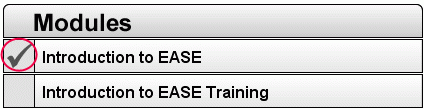 |
The checkmark displays next to a Module when all pages of that module have been reviewed. If the course is exited and re-accessed, completed Modules have a checkmark next to them. |