Order Entry—ASR
With EASE, ASRs that were previously entered into ARMS via HOD (Host On Demand) must be entered in EASE VFO. Batch customers can continue to submit batches to CenturyLink business as usual; however, those orders are placed in EASE VFO for tracking purposes. Paper orders will still be accepted after roll-out and entered into EASE VFO by an CenturyLink analyst, but it is the expectation that all external customers sending paper orders obtain an EASE VFO sign on and password and begin submitting orders online in EASE VFO.
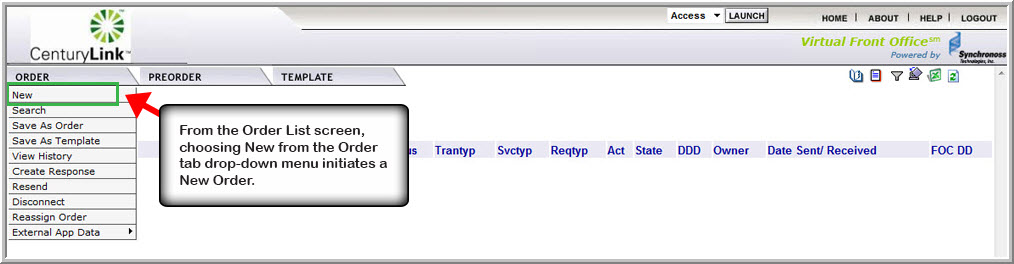
Selecting New from the Order tab menu when the Order List is in view initiates the order entry function in EASE VFO.
Exhibit 6.4.1—New Order Initiation
Once New is selected, the Order Initiation window displays and you are required to enter basic ordering criteria.
Exhibit 6.4.2—Order Initiation Window
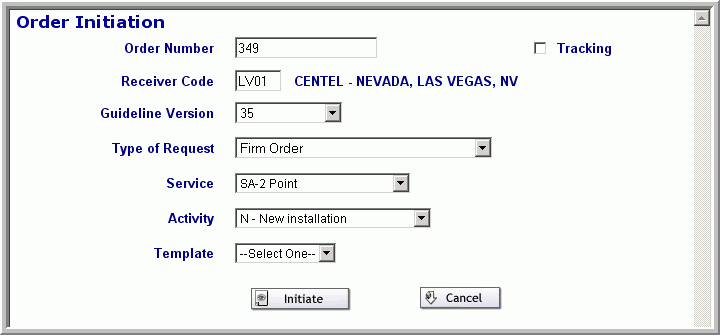
Order Initiation Window Fields
Following are the Order Initiation window fields:
- Order Number - your Purchase Order Number (PON). The PON can be up to sixteen alpha, numeric, or alpha-numeric characters. You can only use a PON once. EASE VFO automatically populates the Order Number field with the next available number, but you can override the number that EASE VFO assigns. Use the following naming convention for specific work groups:
- NEAC PONs - Begin PON with NEAC
- OMG PONs - Begin PON with OM
- ECIO PONs - Begin PON with ECIO
- COS PONs - Begin PON with X
- Tracking - the Tracking button is used to indicate that the order is for tracking purposes only.
- Receiver Code - the ICSC of the region of the order—for example, MG04 or LV01. If the order is meet-point with two or more Local Exchange Carriers (LEC), the Receiver Code field must be the ICSC code of the LEC that is in control of the order. Once you begin typing in this field, a list of codes appears in a drop-down list and you must click the ICSC you want.
- Guideline Version - the version of the industry standard guideline that applies to the order. This field prepopulates once the Receiver Code is added.
- Type of Request - Firm Order is the default value and is the only valid value for this field.
- Service - the types of services are available in the Service field drop-down menu—for example, EUSA-2 Point or SA-2 Point.
- Activity - the order activites are available in the Activity field drop-down menu—for example, New, Change, or Disconnect.
- Template - previously created templates are in the Template field drop-down menu. You can choose to apply a template to an order if one is available.
- Initiate - initiates the order.
- Cancel - discontinues the order entry process.
 Important: Make sure you use the proper naming convention if you are in the NEAC, OMG, ECIO, or COS groups. These naming conventions ensure that order tasks are routed to the proper work group when the order hits EASE Orchestrator.
 Click the Document button to access a printable document containing the Service field values on the Order Initiation screen and what CenturyLink products go with what Service field value.
 Click the Simulation button to practice initiating an ASR in EASE VFO.