
Note: Before you create a request or while you are creating it, you can validate information for your fields through the Pre-Order tab. You can copy valid values from Pre-Order and paste them in the appropriate fields of your request. Validating your information beforehand helps ensure that your request will not be rejected because of invalid data in these fields. See Validating Information for more information about using the Pre-Order tab.
You can create a new request in several ways:
you can create a new request from scratch (follow the steps below)
you can copy an existing request for use as a new one (see Copying a Request)
you can use a request as a template to create a new request (see Using a Request as a Template)
Click the Create New tab. The Create New Access Service Request form appears.
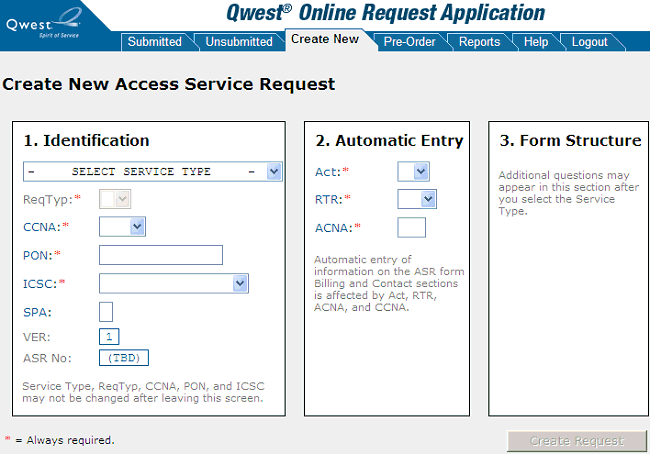
Fill out the Identification section of the form as follows:
Select the Service Type from the drop-down menu. QORA™ automatically updates the section of the tab with the information required for that service type and assigns the appropriate REQTYP .
Note: If you change the Service Type while on this page, a warning message notifies you that the change will reset your answers in section 3 (Form Structure) and ask if you are sure you want to continue. Click OK.
Note: In text fields, you can enter uppercase, lowercase, or mixed case characters; QORA™ automatically converts the characters to uppercase.
Note: The VER and ASR No fields are automatically filled in by QORA™.
Fill out the Automatic Entry section of the form as follows:
If you want to include additional forms in the request, select the forms or fill in information in the Form Structure section—for example, enter an ASC-EC for a Multi-EC form or select an ACI or MSL form from the list.
When you have completed all three sections, click Create Request. The Editing Request page appears. You can now edit the request and submit it, or wait to edit and submit it at a later time.