CORA™ Online Help
If you are the owning CCNA, you can find the BAN by entering related information and selecting from a list of valid BANs. If you are not the owning CCNA, you can validate the BAN by entering it directly. You can then copy the valid BAN so that you can paste it into the appropriate fields when you prepare the request.
Click the Pre-Order tab.
Click the BAN Validation tab. The BAN Validation form appears.
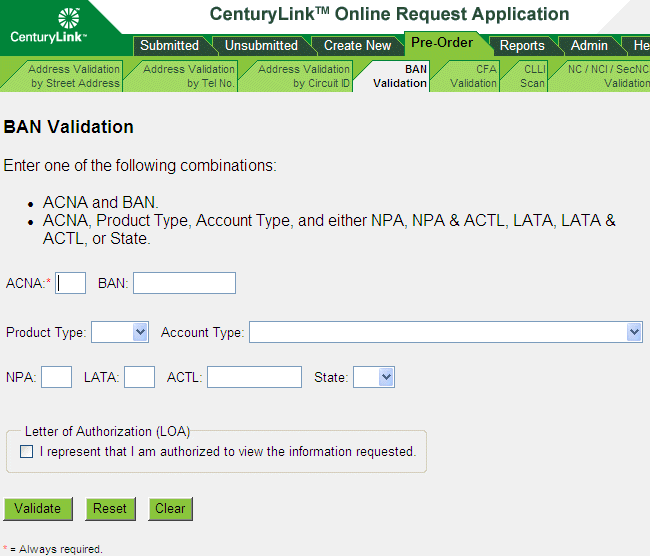
Do one of the following:
If you are not the owning CCNA, enter the ACNA and the BAN.
If you are the owning CCNA, enter either the ACNA and the BAN or the ACNA and the combinations of other variables described in the guidelines on the page.
If you are not the owning CCNA, select the LOA check box. (You must enter the ACNA and the BAN itself in a later step.)
Click Validate. (Or you can reset or clear the form if needed and start over. See Resetting or Clearing a Pre-Order Form.)
|
If the system... |
Do the following... |
|
Tells you that your BAN is correct |
Copy the BAN so you can paste it into the appropriate fields when you prepare the request. |
|
Shows a list of BANs |
Select the correct BAN from the list and copy it so you can paste it into the appropriate fields when you prepare the request. |
|
Doesn't find a valid BAN |
Please ensure the BAN to be validated is correct. If the problem persists, and the BAN is not valid, please contact your Service Manager or CenturyLink SDC. |