
Do one of the following:
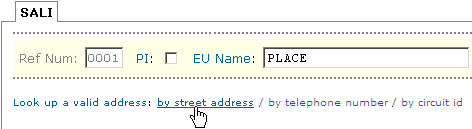
If you want to validate the address from the SALI form, click the by street address link.
If you want to validate the address from the Pre-Order tab, click the Address Validation by Street Address tab.
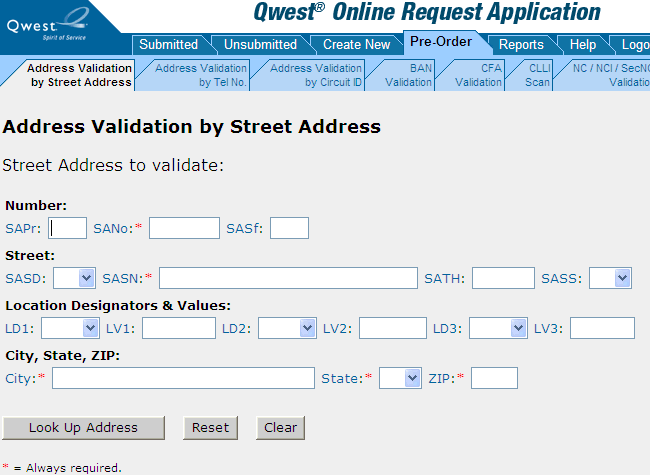
Fill in at least the required (*) fields. If your browser prompts you to save the values you typed, do not do so.
Click Look Up Address. (Or you can reset or clear the form if needed and start over. See Resetting or Clearing a Pre-Order Form.)
|
If QORA™ finds… |
Do the following… |
|
An exact match |
Copy the valid address or click Enter Address on SALI to enter the address and return to the SALI form. |
|
One or more near matches |
If QORA™ displays a range of numbers, type the specific number in that range in the SANO field. Then click the black triangle in the leftmost column to select that address for validation. If more than one community is on the list of selections, be sure you select the correct range for the community needed. If the correct community for your address does not appear on the list of selections, try changing the actual address entry using one of the suggestions below. When QORA™ displays an exact match, copy the valid address or click to enter the address and return to the SALI form. |
|
One or more supplemental matches |
Click one of the black triangles in the leftmost column to select one address for validation. If the supplemental location information you need doesn’t appear on the list, submit your ASR with the location information and QORA™ will accept your request. When QORA™ displays an exact match, copy the valid address or click Enter to enter the address and return to the SALI form. |
|
No matching address |
Do one or more of the following: Try validating by telephone number. Try filling in only the five required fields and then progressively filling in further fields until QORA™ finds a match. Try variations in the type field—e.g., comma (,) and period (.). |
Address Validation Tips
The list below is made available to assist users in the process of address validation.
Use the U.S. Postal Service ZIP code lookup to validate spelling of street name, correct ZIP code, and city name.
USPS uses AVE while many states use AV.
Use local or online directories to locate addresses and working telephone numbers.
If numeric in the street name (SASN field) is “3rd” you may need to convert to “3D”, or “3”.
For numeric street names with “th” or “st”; e.g., 4th or 1st, try removing the “th” or “st” from the street name field (SASN)
Move street type (SATH) as part of the street name (SASN), for example:
123 S Main St (St as SASS) would be changed to 123 S Main Street (“Main Street” in SASN) and no directional suffix.
Move secondary directional into the street name, for example:
250 E 200 S would be changed to 250 E 200 South (“S” moved from SASS to SASN and changed to “South”)
Not all states or communities use the same address format.
An example of this is that in some states if the address has 2 directionals, like 250 E 200 S, the format in QORA could be using both directionals abbreviated. However, in another state or community 200 South is actually the street name.
Supplemental lists only displays the first 25 locations in a building. If your location is not displayed enter the data in the appropriate LD/LV field and submit your order. Qwest then takes the steps to have the information added to our internal database.
Double check the street type (SATH), many cities have street names that are used in different combinations. For example Lakewood Road, may be Lakewood Street, Lakewood Avenue or all three could be valid.
Verify that the address provided is the Service Address, not the listed address.
Provide a working telephone number located on site, it does not have to be a number for your customer, just a number at the location.