Creating Reports
-
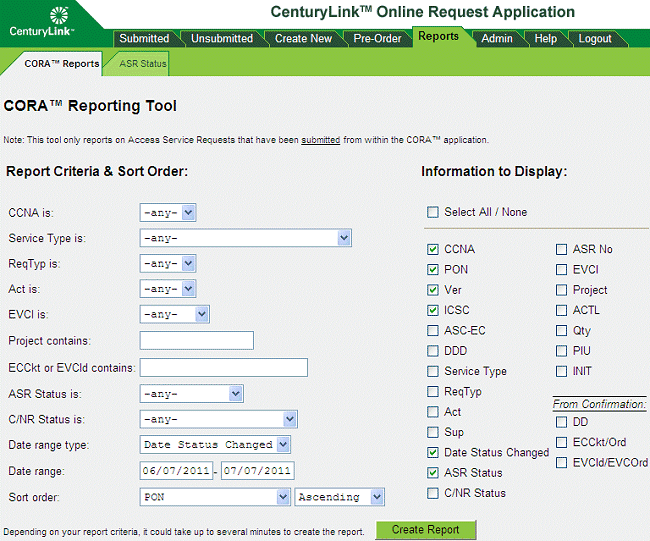
Click the Reports tab. The CORA™ Reports sub tab appears by default.
-
In the Report Criteria & Sort Order column, specify criteria to limit the information in the report. To list requests only for a specific CCNA and a specific Service Type, for example, specify the CCNA and the Service Type you want. Some commonly used check boxes are selected by default, but you can check/uncheck any check boxes desired. (See Report Criteria & Sort Order Fields for more information.)
-
In the Information to Display column, select the information you want to include in your report.
-
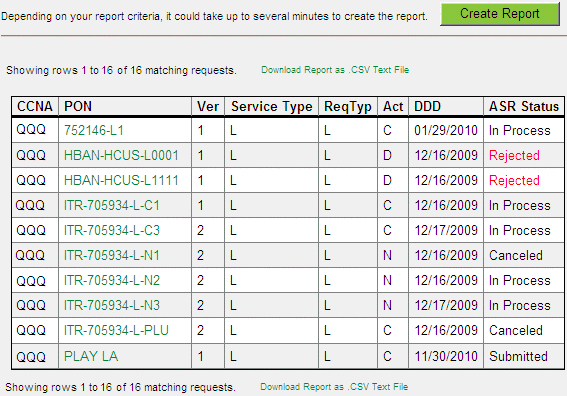
Click Create Report. Report results appear at the bottom of the page. If the report contains over 100 entries, use the Next>> and <<Previous links to view additional results. You may need to use scrollbars to scroll horizontally or vertically in the tab to view all result columns and rows. You can also download the report (see Download the Report as a CSV File).
Note: Generating reports can take a while depending on the criteria selected.
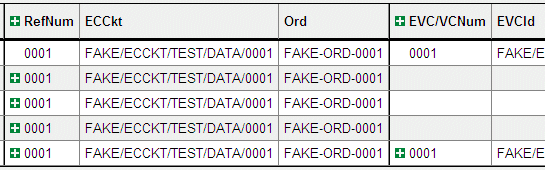
If you included "From Confirmation" fields in the report, those additional columns will appear in the search results.
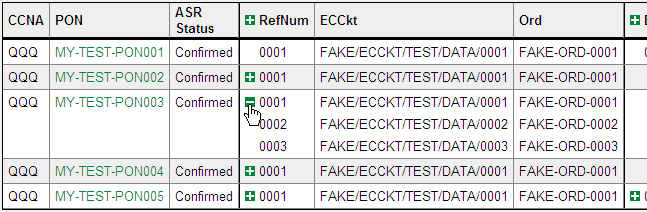
NOTE: The RefNum and EVC/VCNum columns provide a way to show (expand) or hide (collapse) RefNum or EVC/VCNum instances for a PON. To show all instances for all PONs, click the  icon in the heading row for the RefNum or EVC/VCNum. To show instances for a specific PON, click the icon next to the RefNum or EVC/VCNum value for the specific PON. In the following example, only the instances for a specific PON have been expanded. After you show an instance, the icon becomes a
  icon, and you can click it to hide the instance.