
Basic troubleshooting for fiber internet
Having trouble with your CenturyLink Fiber internet? Here are the steps to follow before you contact us for help.
1. Check for an outage
Sign in to your CenturyLink account to see if you're in an area outage.
2. Check your equipment
An Ethernet cable will connect your modem to the fiber terminal (ONT) or your SmartNID to your primary pod. See detailed connection info for each type of equipment below.
Check that your SmartNID and primary pod are connected correctly.
Confirm power
Confirm that you have power to the outlets that the pod and SmartNID are plugged into. If not, try another outlet or resolve your power issue. Also make sure the power switch on the back of each pod is in the ON position. Continue to the next step.
Check for internet to the SmartNID
Check the light on the front of your SmartNID (the white box shown in the image above). Is the light green? If yes, then your internet is working, and you can go on to the next step. If the light is red or off, there may be an outage or service issue.
Check connection to the primary pod
Check the connection between your SmartNID and the primary pod:
- One end of the Ethernet cable should be clicked firmly into the LAN2 port on the bottom of the SmartNID.
- The other end of the Ethernet cable should be clicked firmly into the WAN port on the primary WiFi pod.
Check the lights next to the Ethernet ports on both the SmartNID and the pod. The lights should be either orange or green on both ports. If they are not, continue to the next step.
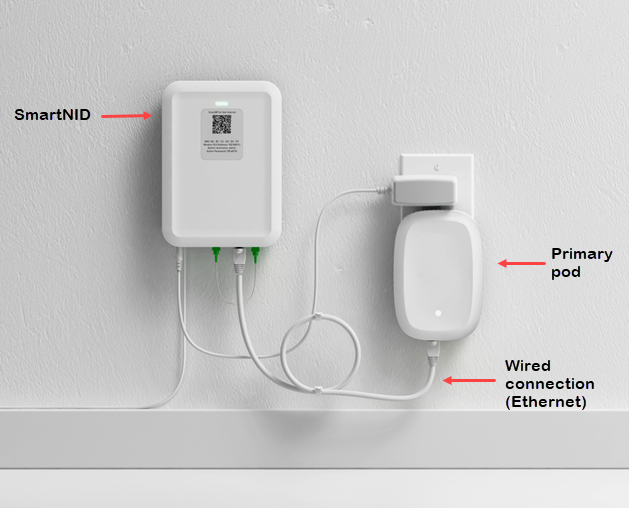
SmartNID connected to 9500 WiFi 6 pod
Reboot the SmartNID
Unplug the power cord, wait at least 30 seconds, then plug it back in. Wait 2-3 minutes for it to fully boot up, then check again for a connection. If the SmartNID does not connect to the network, contact us. If your internet connection is good (the light on the front of the SmartNID is green) but you still can't get your pod to connect, contact us.
DO NOT REMOVE the fiber cord(s) on the bottom of your SmartNID. These are part of the fiber connection and should not be unplugged.
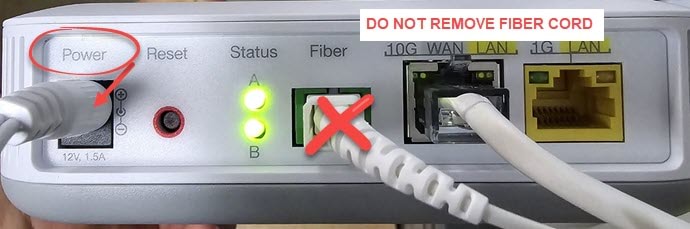
Try a different LAN port
Plug the Ethernet cord into a different LAN port on the bottom of the SmartNID. Check that both ends of the cable are fully clicked into place. If another port works, then the first port could be faulty.
An Ethernet cable running from the fiber terminal should be plugged into the LAN/WAN port on the back of the C4000XG router. When connected, the status light on the front of the modem will be solid green.
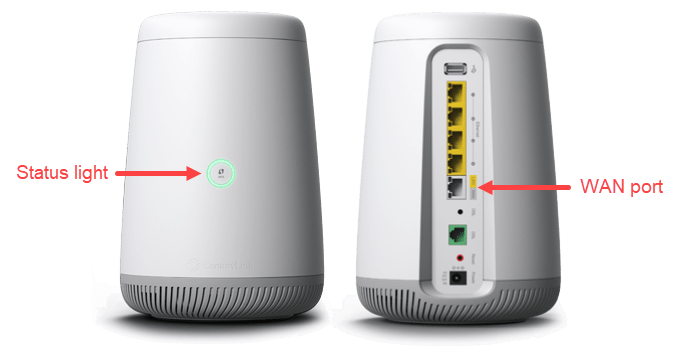
No green light?
If the status light ring is off (no color), it means your modem is not connected to the network. The most common causes of this are loss of power to the fiber terminal (ONT) or an unplugged network cable.
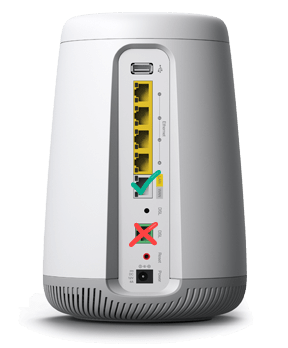
Back of C4000 modem showing a WAN/LAN port with the green checkmark.
Check the connections to the back of the modem:
- Make sure you have an Ethernet cable plugged fully into the WAN port on the back of the modem. The other end of this cable should be plugged into the active wall jack or indoor fiber terminal.
- Make sure the power cord is firmly plugged into the power port on the back of the modem and into a working electric outlet.
Now check the status light again.
Still not green? Check for any tripped electrical breakers or outlets.
If your status light is still off, or is flashing red and green, it's an issue for a CenturyLink technician. Please contact us for help.
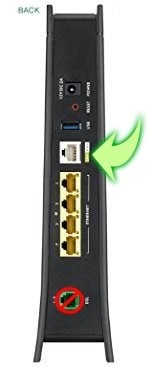
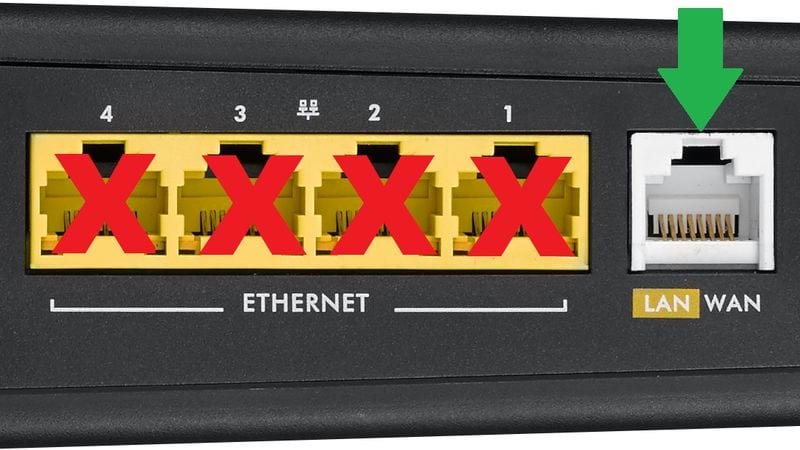
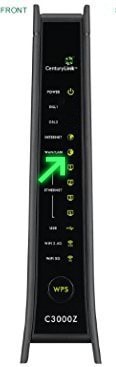
An Ethernet cable running from the fiber terminal should be plugged into the WAN/LAN port on the back of the modem. When connected, the WAN/LAN light on the front of the modem should be green.
WAN/LAN light not green?
The Wide Area Network (WAN) light shows that your modem is connected to the fiber terminal. If this light is off, it means you aren’t connected to the network. The most common causes of this are loss of power to the fiber terminal (ONT) or an unplugged network cable.
Check the connections to the back of the modem:
- Make sure you have an Ethernet cable plugged fully into the WAN port on the back of the modem. The other end of this cable should be plugged into the active wall jack or indoor fiber terminal.
- Make sure the power cord is firmly plugged into the power port on the back of the modem and into a working electric outlet.
Now check the WAN/LAN light again.
Still not on? Check to see if any electrical breakers or outlets with circuit breakers in them have been tripped.
No INTERNET light?
If you have a solid WAN light but not an internet light, it's an issue for the CenturyLink repair team. Please contact us to get help.
Fiber Topics
-
Manage account -
Move and cancel -
Appointments -
Troubleshooting -
Outages

Manage your CenturyLink Fiber account
Was this information helpful?