We no longer support this browser. For an optimal experience, we recommend updating your browser.

How to set up and activate Connected Voice Professional service
Use this set-up and activation guide to get started with your new Connected Voice Professional service.
Connected Voice comes in two versions: Basic and Professional. There are different set-up instructions for each. Stay here to see the instructions for the Professional version, or click here to see instructions for Basic.
Video: Self-install Connected Voice Professional
Connected Voice Professional equipment list
Check that you received all of the equipment:
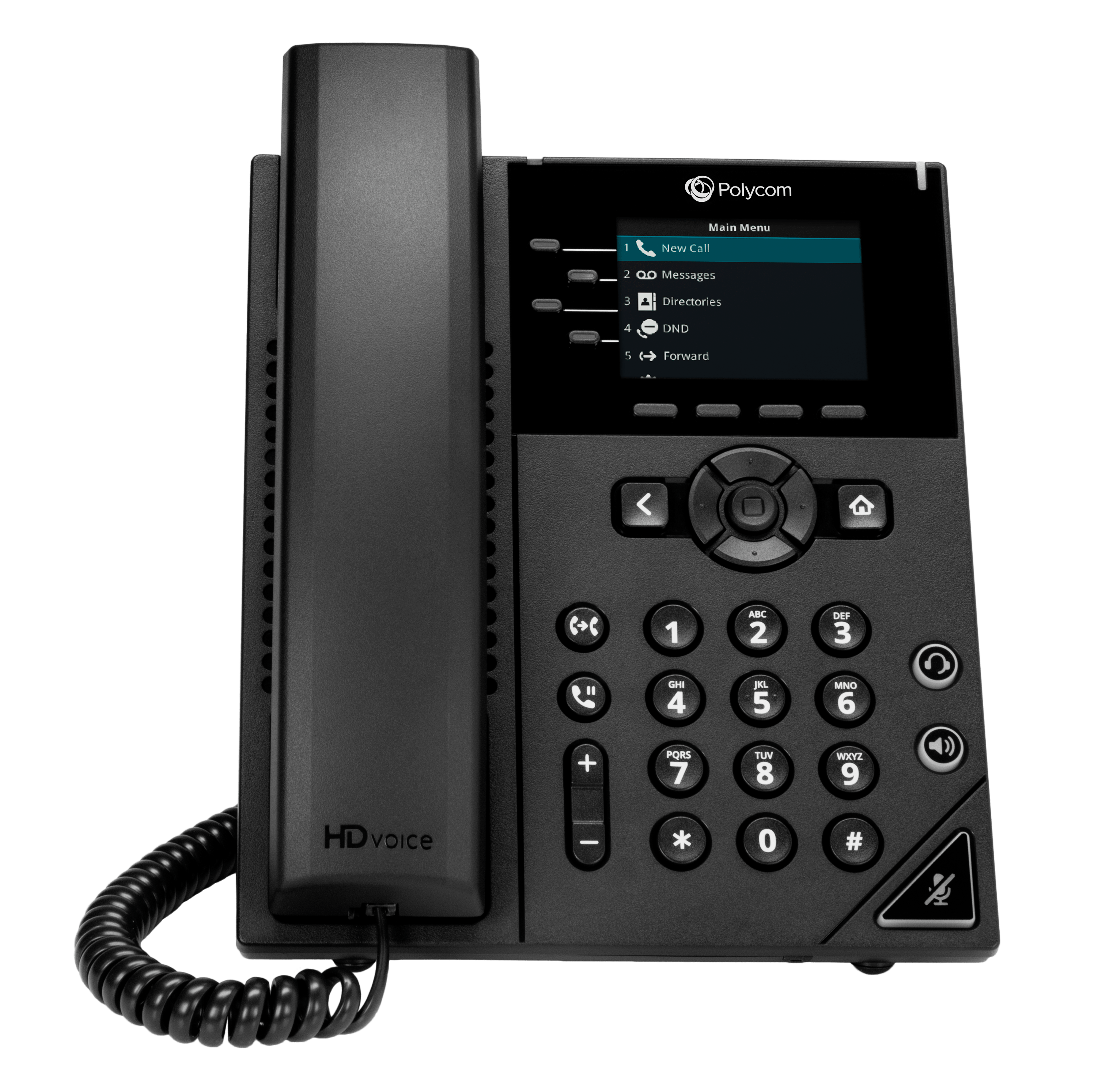
- Polycom business phone
- Power adapter cord
- Network cable
- Base stand
- Installation guide
- 911 sticker
Step-by-step set up of Connected Voice Professional version
Connected Voice will only work with phones that are connected to your internet service. Any phones plugged into a standard phone jack will not work with Connected Voice.
The Connected Voice Polycom phone will automatically self-configure after it's connected to your CenturyLink internet service. All you need to do is plug in the phone and connect the cables in these four steps:
- Connect the handset to the phone base
- Connect the network cable
Plug the network cable into the network port on the bottom of the phone. Connect the other end of the cable to an active Ethernet port, either on the back of your modem or an Ethernet wall jack.
- Plug in the phone
Connect the power adapter cord to the base of the phone and plug it into a wall outlet. Look for the lights on the phone screen to to turn on.
- Self-configure
Now simply wait while your Connected Voice phone completes auto-setup. Once you hear a dial tone, it's ready to use.
Give it time to configure
The configuration process could take up to 15 minutes. Do not unplug or restart the phone while any of the lights are flashing during this initial boot up and configuration phase. This could cause it to malfunction.
Find your Connected Voice phone number
You can find your Connected Voice phone number a couple of ways:
- Make a call from the Connected Voice phone to a number with caller ID
- Sign in to your account
Sign in to your Connected Voice account
You'll receive a welcome email after you order your Connected Voice service. This email will include your username and a link to create your password. After you're signed in, you can view account details, call records, voicemail messages, and more.
Don't forget about battery back-up
Your Connected Voice service will not work in the event of a power outage unless you you have a battery backup unit. Learn more about battery backups.

Top Internet Topics
-
Check for an outage -
Troubleshooting slow internet -
Speed hub -
Upgrade your service -
WiFi support -
Internet security
View all Internet topics
Top Tools


.png)

Was this information helpful?
Support topics



About Lumen | About CenturyLink | Careers | Investor Relations | Newsroom | Legal | Privacy Notice | Tariffs | Customers with Disabilities | Site Map | Cookie Settings | CenturyLink in Your Area | CenturyLink.net | White/Yellow Pages | Centurylink Retailer
Residential | Small Business | Enterprise | ©2026 CenturyLink. All Rights Reserved.