The modem status area of the modem settings shows you several options related to how your modem is running. Follow the steps below to access the modem status menu.
1. Connect a device to your network over WiFi or using an Ethernet cable connected to your modem. This works best on a tablet or computer.
2. Open a web browser and type http://192.168.0.1 into the web address field.
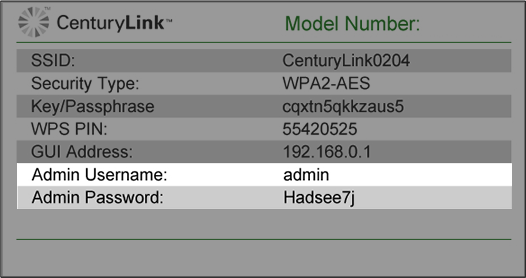
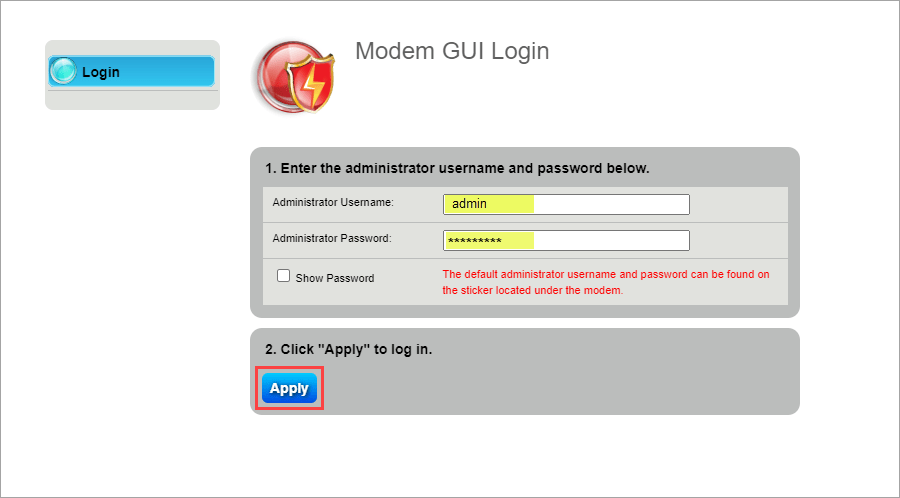
3. Sign in to the modem settings (GUI) using your Admin Username and Admin Password, printed on the sticker.
You can find the Admin Username and Password printed on the sticker attached to the side, back or bottom of the modem.
CAUTION!Do not remove your modem sticker. It includes your default Admin Username and Admin Password, which cannot be retrieved if lost. Your modem could become unusable without them.
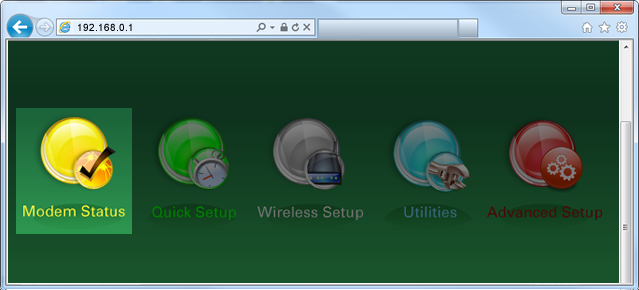
4. Select Modem Status in the main menu.
5. Select a status option from the menu.
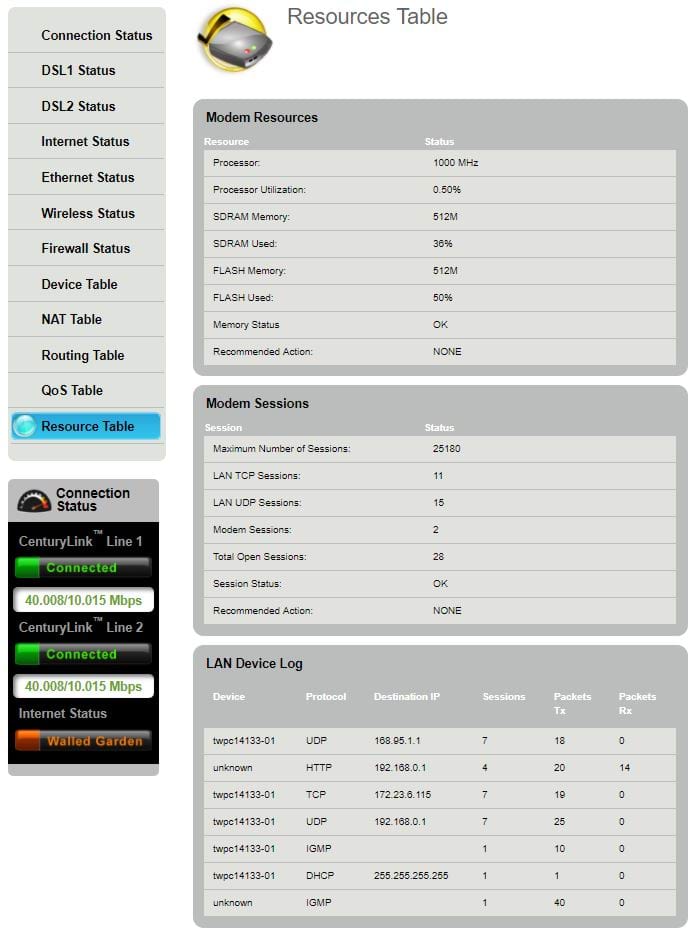
Click on the status menu options below to view screenshots or more details.
Note: Your modem settings may appear slightly different from the images below, but the steps will be the same.
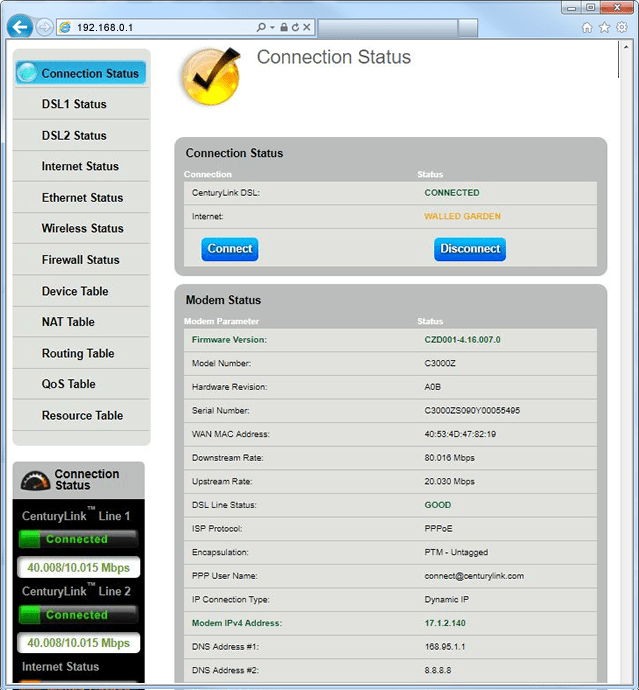
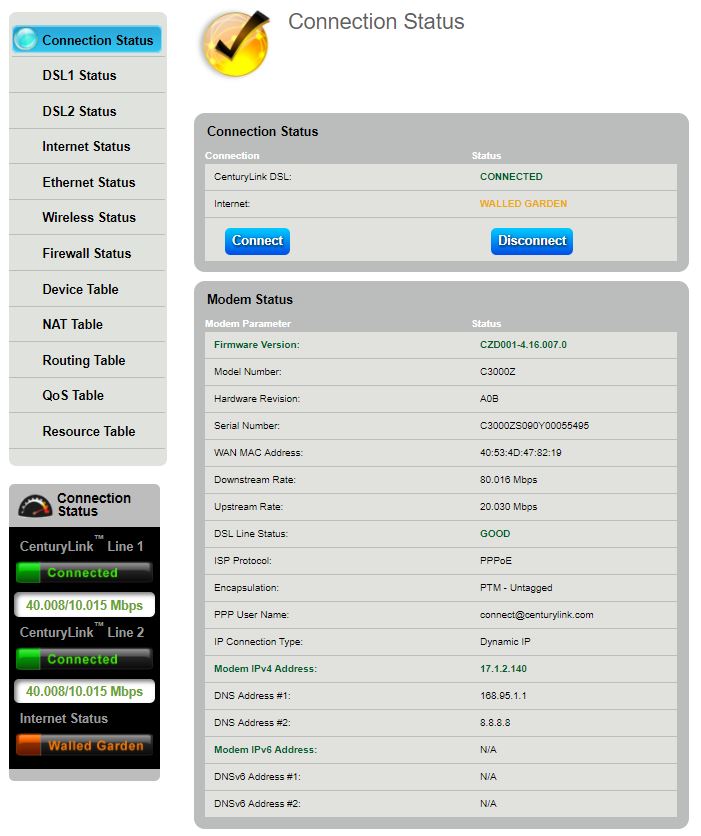
The connection status displays details about the firmware version, model number, MAC Address, connection (upstream/downstream), encapsulation, and the IPv4 address of the modem.
Note: You may see IPv6 on the menu, but CenturyLink modems are not enabled with this version.
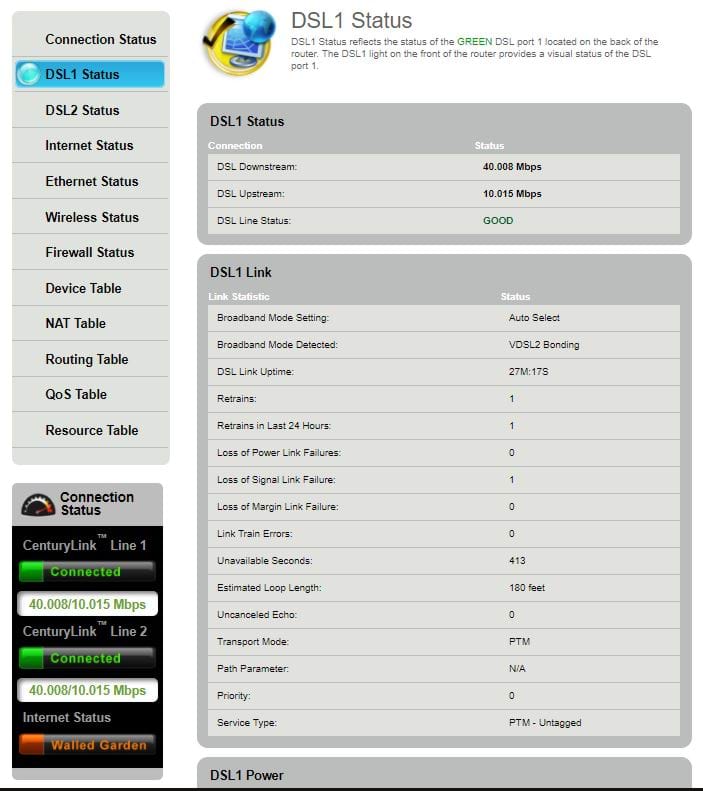
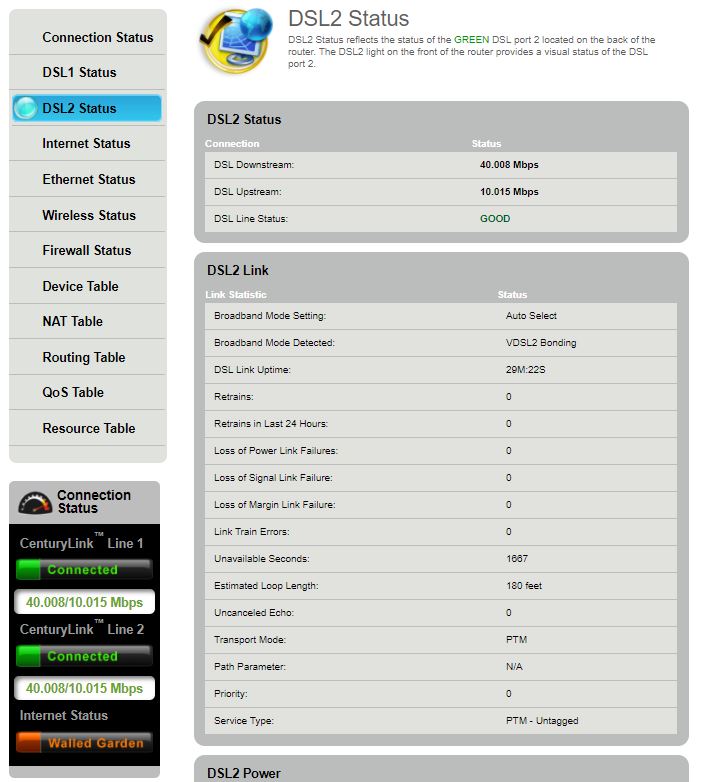
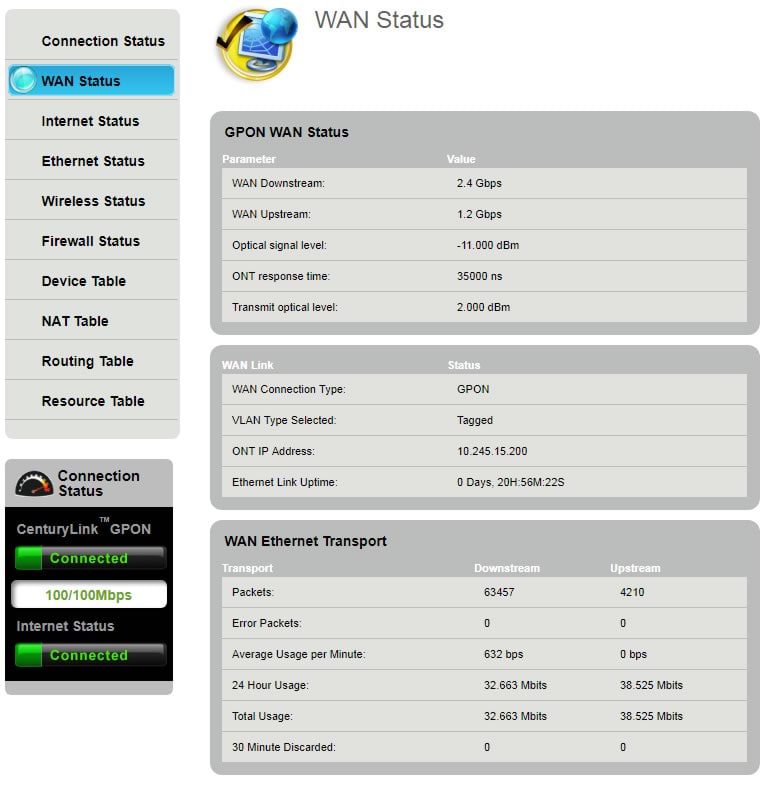
The DSL1/DSL2 and/or WAN status display details about the DSL connections into the back of the router (there may be 1 or 2, depending on the model). Details include broadband mode, loss of power, loss of link, SNR, attenuation, errored packets, CRC, and FEC corrections. Fiber modems will show WAN status instead.
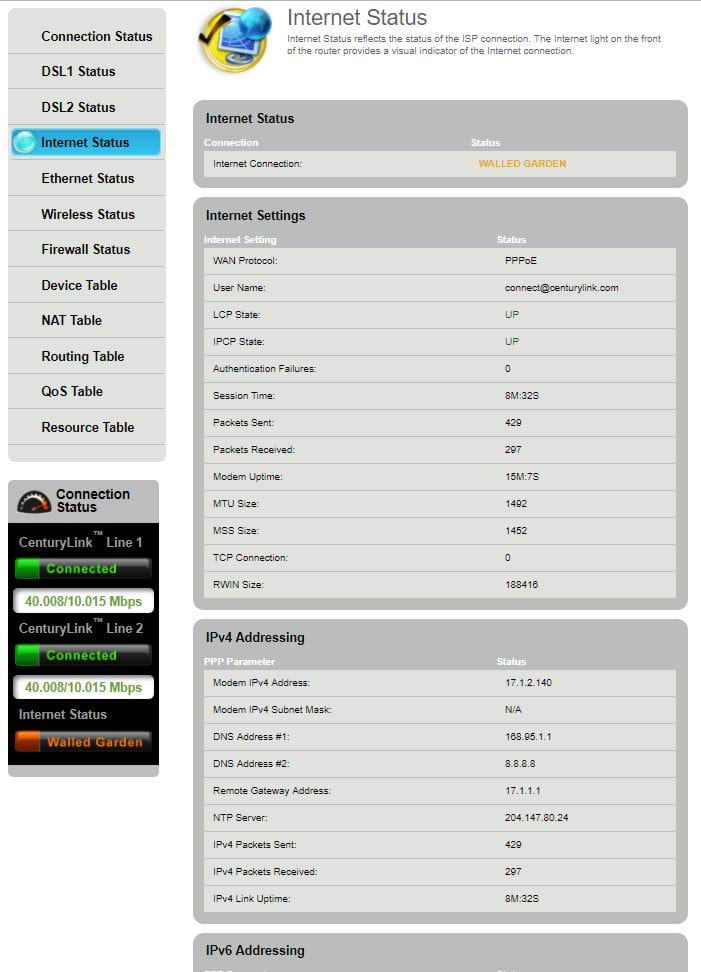
The internet status displays details about the connection to the ISP. Details include authentication failures, NTP server, IPv6 addressing, session time, and RWIN size.
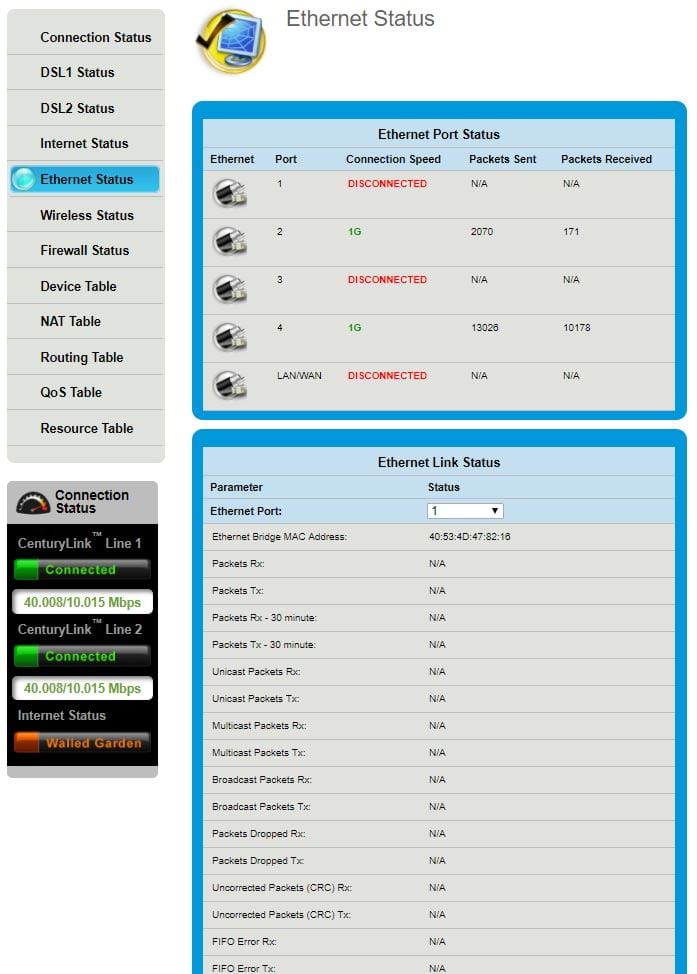
The Ethernet status displays details on the Ethernet ports on the back of the router. Details include packets sent/received, code violations, and uncorrected packets.
The wireless status displays details about the WiFi connection, including best channel available, channel utilization, number of connected devices, mode, and state. From there, you can go to the wireless settings to change the WiFi channel setting to a more optimal one.
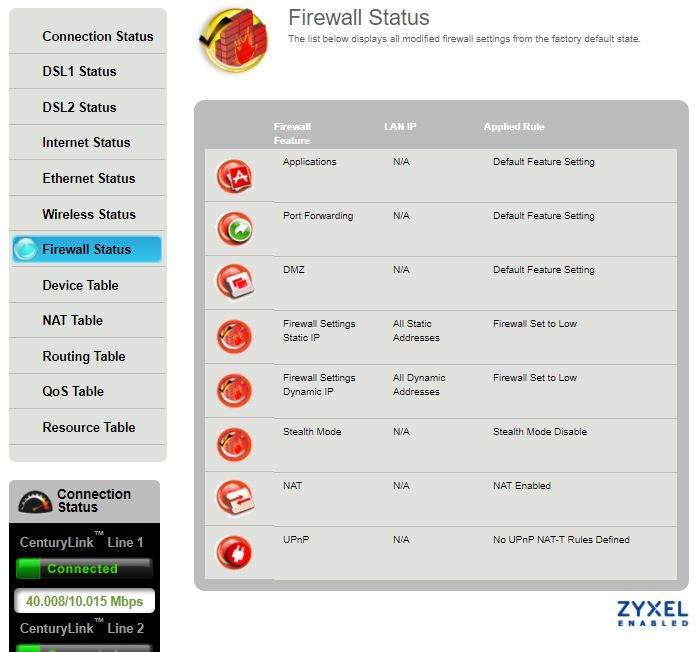
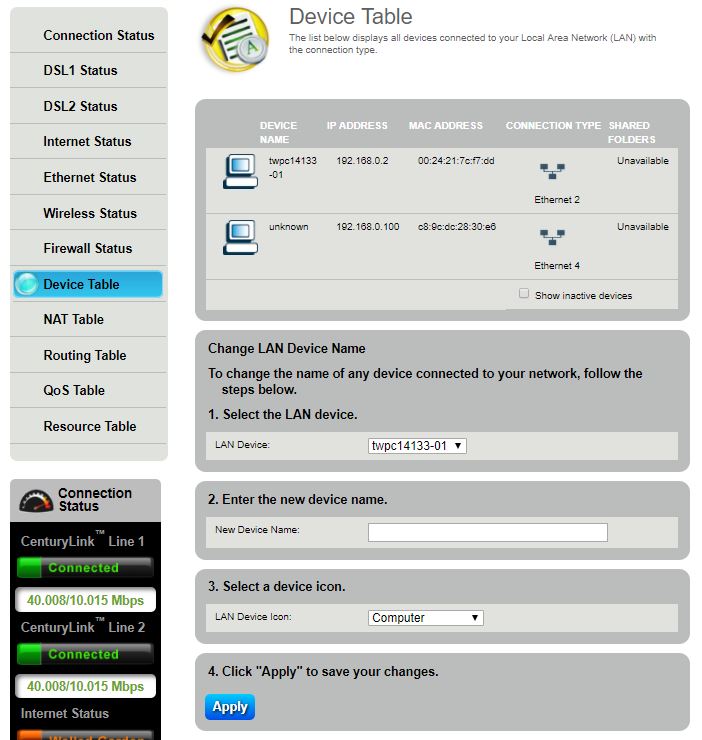
The firewall status displays details on any firewall settings that have been modified. Details include displays on all devices and connection types that are connected to your modem.




.png)